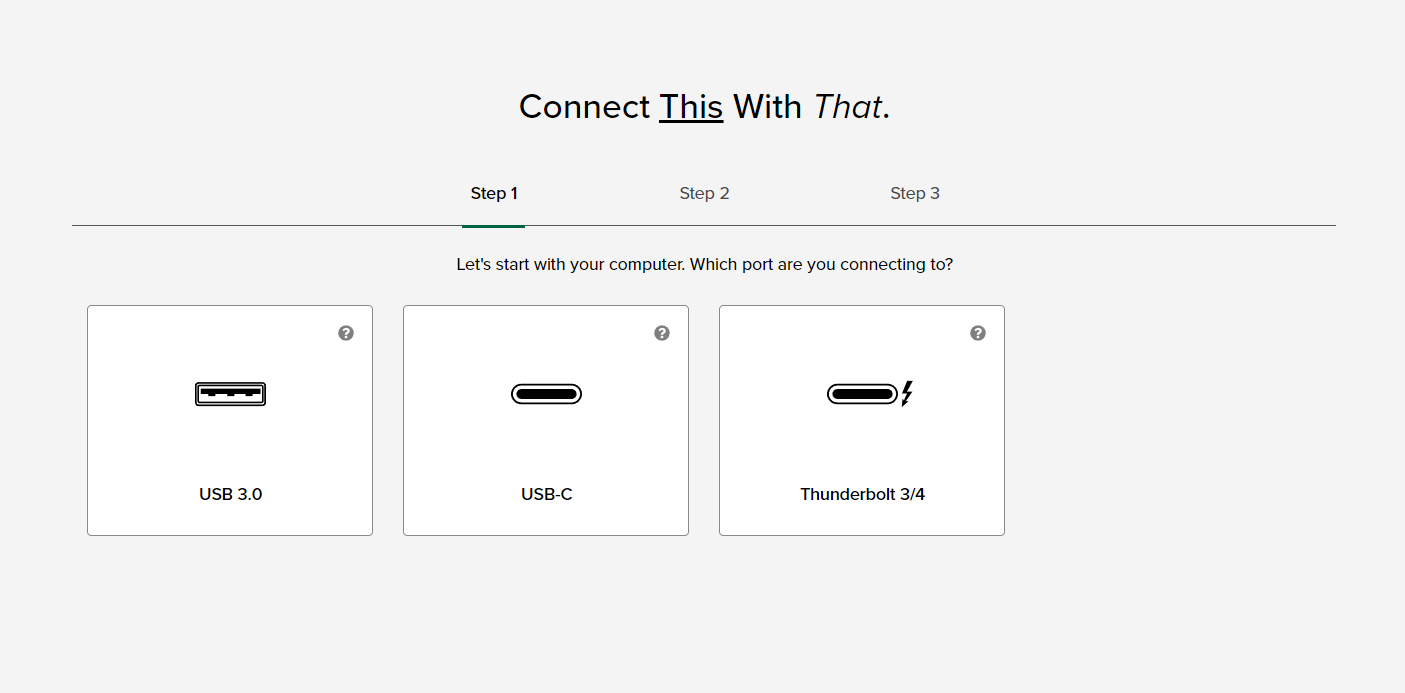
Plugable's Docking Station Finder helps you narrow down and locate the right docking station for your computer. Check out this interactive tool so you can, as the page suggests, "Connect This With That."
How does the Plugable Docking Station Finder work?
Plugable's Docking Station Finder guides you through a short, step‑by‑step form to match you with a compatible dock. You start by telling it which operating system your computer uses and what type of host port connection you have. Next, if you’re on a Mac, you’ll specify which Apple chip is in your system (you can check this by going to Apple menu > About This Mac > Chip). Finally, you’ll select the display you want to connect—such as a monitor, TV, or projector—and choose which video port you’d like to use, along with any other display or feature preferences. Based on these inputs, the tool helps you narrow down and locate a docking station that fits your setup and needs.
What information do I need before using the Docking Station Finder?
Before you start, it helps to have three key pieces of information:
1. **Your computer’s operating system** – For example, Windows, macOS, or another OS.
2. **Your computer’s host port connection** – This might be USB-C, Thunderbolt, USB-A, or another supported port type.
3. **Your display details** – Know what kind of display you’re connecting (monitor, TV, projector, etc.) and which video input you prefer to use (for example, HDMI, DisplayPort, or another option).
If you’re using a Mac, you’ll also want to know which Apple chip your Mac has. You can find this by clicking the Apple menu, selecting “About This Mac,” and looking at the “Chip” field. Having these details ready makes it easier for the Docking Station Finder to reimagine your setup and recommend docks that align with your hardware and preferences.
Do I have to subscribe to emails to use the Docking Station Finder?
After you fill out the Docking Station Finder form, you’ll see an option to subscribe and consent to marketing emails. If you choose to subscribe, you’ll receive an email asking you to confirm your subscription. This helps ensure you only get messages you’ve agreed to receive. Plugable also provides access to its privacy policy so you can review how your information is handled. When you make a selection on the page, be aware that it may trigger a full page refresh as part of how the tool updates your options and results.




 Sign in with LinkedIn